


5 Xcelsius tips to start 2011 right!
Let’s kick off 2011 with some Xcelsius (SAP Crystal Dashboard Design) tips which may help you during the development of some cool Xcelsius dashboards.
1. Document from start
Documenting your work sounds like something that can wait until you finished the dashboard. In Xcelsius development this can get you into trouble. As a dashboard gets more complex during development it is important to remain in control. There are a number of ways you can apply this:
Use colors to express the functionality of spreadsheet cells, i.e. yellow for data input from Xcelsius, green for Excel formulas, orange for Dynamic Visibility and blue for external data. In addition to colors you can insert comments and borders on spreadsheet cells to keep things clear for yourself and others.
Use different worksheets for the data and Excel-logic for each corresponding dashboard tab or layer. Also group components and give these groups a logical name. If you use multiple components of the same type also rename them. Use the Object Browser to do this.

2. Use Global Font
So you built a nice dashboard and now you want to see how it looks with some different fonts. Manually changing the font of all your components texts is obviously a big no-no here. It takes way too much time and will frustrate you even before you started. Luckily you can change the font of all texts at once with the Global Font option.
Go to the Document Properties in the File menu. Select Use Global Font and choose your font from the list. Do not forget to select Use Embedded Fonts. That way you are sure the dashboard will look like you designed it on every computer it is run on. If you choose Use Device Fonts the dashboard will only use fonts that are available at the user’s computer. If the font that you used is not available another font will be used which can mess up your layout! So even if the SWF-file gets a little bigger, don’t use this setting!

3. Use the Grid and the Formatting Toolbar
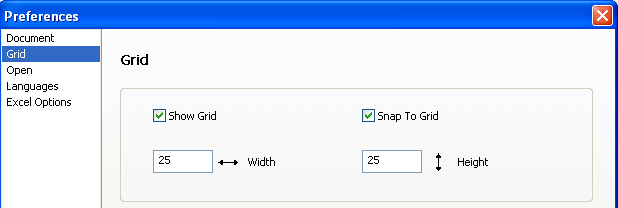
If you are building a dashboard with a large number of components and multiple (Dynamic Visibility) layers it gets more and more challenging to give each component the right placement. You can use the Grid to make this a lot easier for yourself. You can find this setting in Preferences under the File menu.
If you also select Snap To Grid you will see that if you drag and drop a component on the canvas its left and top sides will be glued to the grid. Use the arrow keys to move the component away from the grid if you need to.
To minimize the number of mouse movements and clicks use the Formatting Toolbar instead of the Format menu if you need to group, align, size or change the relative layer position (Bring to Front/Send to Back) of components. Even faster are the contextual menu (right click a component) or the keyboard shortcuts. Unfortunately the latter are not available for the alignment and sizing options.

4. Edit Multiple Components
I don’t like to do the same thing twice and I don’t think you will. In Xcelsius you can change the properties of multiple components at the same time by simple selecting them all (CTRL-click) and displaying the Properties area. To make this very clear, the Properties area’s name will change into Multiple Components.
If you select two components of a different type (i.e. a Line Chart and a List Box component,) only a Common tab is shown in which you can edit the Dynamic Visibility and Entry Effect settings for all selected components.

5. Check out the Samples and Templates
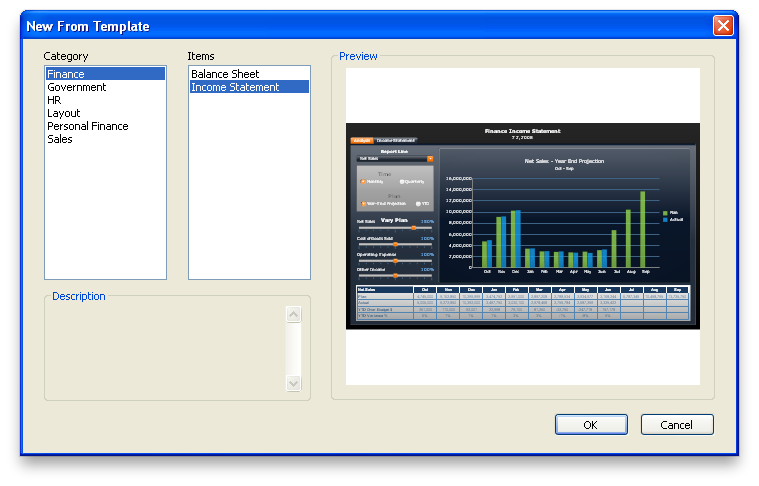
Xcelsius is delivered with a very large set of dashboard Samples and Templates. You can find both under the File menu. If you just started developing with Xcelsius this is a great resource to learn from!
The Samples demonstrate the functionality and configuration of separate components. The Templates combine a lot of components can give you some great ideas on how to design and create your own dashboard.

HackingSAP.com - Dec 31, 2010 | SAP BusinessObjects Dashboards, Xcelsius
Tagged | SAP BusinessObjects Dashboards, SAP Crystal Dashboard Design, Xcelsius


3 comments
Ilyas
April 5, 2011Any ‘relative positioning’ functionality on xcelsius yet?
Basavaraj Dhula
April 6, 2011nice one……a good tips for beginers… 🙂
Francis
April 3, 2012Hi Xavier,
I have an issue regarding global fonts.
I want that my dashboards looks the same in every pc. So, as you suggested, I go to global fonts and select “use embedded fonts”.
Then I publish on SAP.
But if I enter again, searching for this option “use global fonts” is switched off.
Any idea?
I am using Xcelsius 2008 SP4.
Thanks in advance.
PD: I have been searching a solution in the new SCN, but that place is a mess since they changed it.
2 Trackbacks
[…] View strange post here: 5 Xcelsius tips to begin 2011 right! […]
perder peso…
[…]5 Xcelsius tips to start 2011 right![…]…